

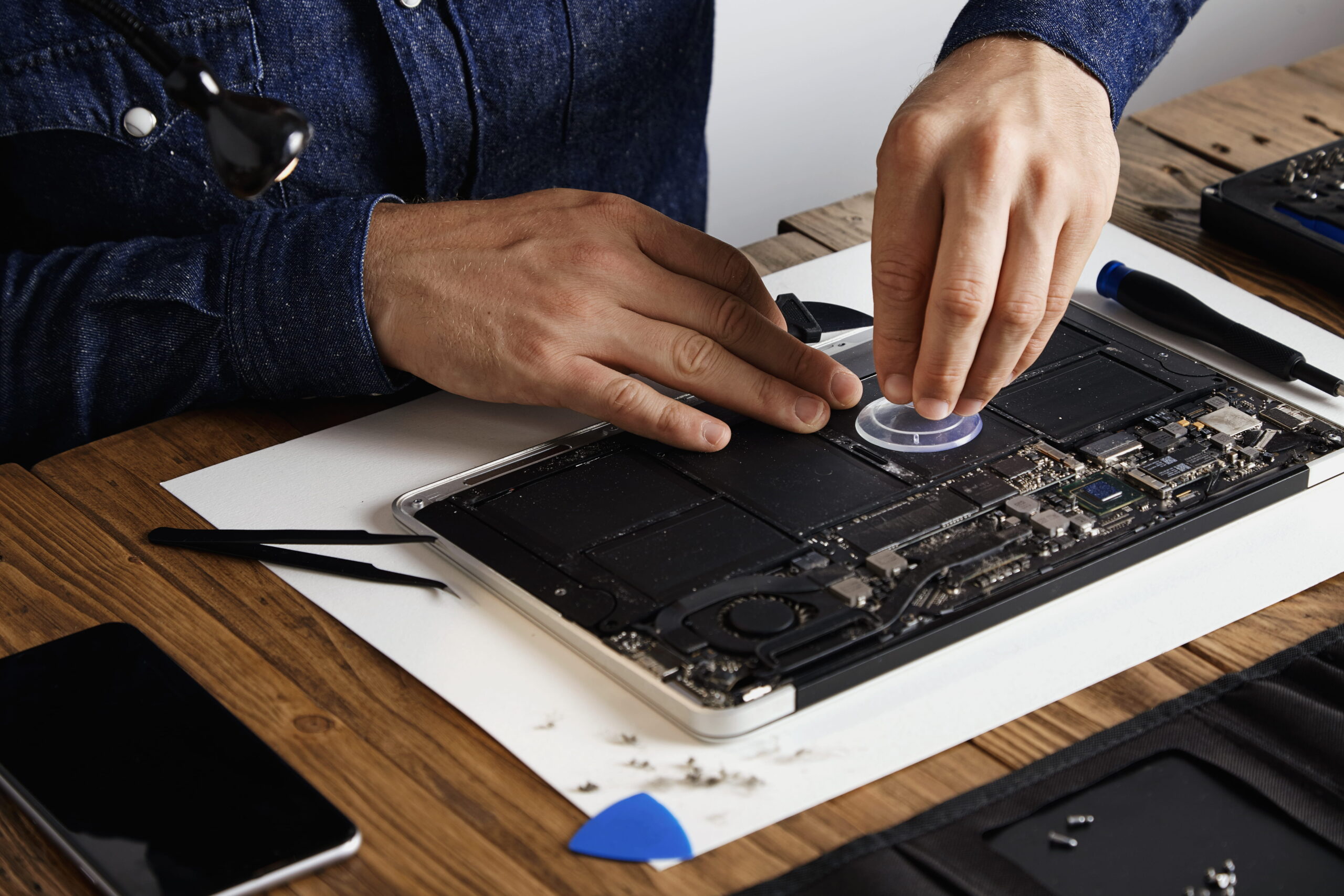
There’s nothing more frustrating than pressing your laptop’s power button and getting no response. No lights, no fan sound, no display — just a completely dead device. Whether you use your laptop for work, studies, gaming, or business, this issue can feel urgent and stressful.
Before you panic or assume the motherboard is gone, it’s important to understand that a laptop not turning on can have multiple causes. Some problems are minor and easy to fix, while others require professional diagnosis. In this step-by-step guide, we’ll walk you through practical troubleshooting methods based on real repair experience at professional service centers like Lappy Care in Delhi.
Step 1: Check the Power Source First
It may sound basic, but power issues are one of the most common reasons laptops fail to start.
Start by checking the charger and power cable. Look for physical damage, bent pins, or loose connections. Try plugging the charger into a different wall socket. If possible, test with another compatible charger.
If your laptop shows no charging light at all, the problem could be:
- Faulty adapter
- Damaged charging cable
- Loose DC jack
- Internal charging IC issue
In many cases, customers searching for “laptop not charging repair in Delhi” discover that the adapter is the real culprit — not the laptop itself.
Step 2: Perform a Hard Reset (Power Drain Method)
Sometimes, residual static electricity prevents the laptop from powering on.
Here’s what you can do:
- Disconnect the charger.
- Remove the battery (if removable).
- Press and hold the power button for 20–30 seconds.
- Reconnect only the charger (without battery) and try turning it on.
This method resets internal circuits and often solves minor power lock issues.
If the laptop starts after this, the issue may have been temporary power imbalance.
Step 3: Observe the Symptoms Carefully
If the laptop still doesn’t turn on, pay attention to small signs:
- Does the charging LED light up?
- Do you hear fan movement?
- Does the keyboard backlight blink?
- Is there a faint display when shining a torch on screen?
If lights turn on but there is no display, the issue might be related to:
- RAM failure
- Display panel issue
- Graphics chip problem
- Motherboard fault
If absolutely nothing responds, it could indicate deeper motherboard or processor-related damage.
Step 4: Check RAM (If You’re Comfortable Opening the Device)
Loose or faulty RAM can prevent booting.
If you have basic technical knowledge:
- Remove the back panel.
- Take out the RAM carefully.
- Clean it gently with an eraser.
- Reinsert it firmly.
If the laptop turns on after reseating RAM, you’ve found the problem.
However, if you’re unsure, it’s better to visit a professional technician to avoid further damage.
Step 5: Consider Overheating or Processor Issues
Overheating can cause sudden shutdowns and eventually prevent booting. If your laptop was previously shutting down automatically or getting extremely hot, internal thermal damage might have occurred.
Processor (CPU) and motherboard power section issues are common in such cases. This is where professional chip-level diagnosis becomes necessary.
At experienced service centers, technicians check:
- CPU voltage lines
- Power IC circuits
- Short circuits on motherboard
- BIOS corruption
- Burnt components
Many people assume full motherboard replacement is needed, but often the issue is a small repairable component.
Step 6: Liquid Damage Check
If your laptop was exposed to water, tea, coffee, or moisture, internal corrosion may be preventing startup.
Liquid damage doesn’t always show immediate symptoms. It can slowly damage motherboard circuits.
In such cases:
- Do NOT try turning it on repeatedly.
- Do NOT charge it.
- Get professional inspection immediately.
Early diagnosis can prevent permanent motherboard damage.
Step 7: When to Visit a Professional Repair Center
If you’ve tried basic troubleshooting and the laptop still won’t power on, it’s time for expert diagnosis.
A professional laptop repair technician will use proper tools to:
- Measure voltage flow
- Test motherboard components
- Identify short circuits
- Diagnose processor faults
- Check BIOS functionality
This level of diagnosis cannot be done at home safely.
If you are in Delhi and searching for:
- laptop not turning on repair near me
- motherboard repair service in Delhi
- HP service center in Delhi
- MSI service center Delhi
Choose a repair center that offers transparent pricing, chip-level expertise, and clear explanation before starting work.
Repair or Replace: What’s the Right Decision?
Not every dead laptop requires motherboard replacement. In many cases, small IC repair, charging port replacement, BIOS reprogramming, or short circuit correction can restore full functionality.
An experienced technician will always attempt safe repair first before suggesting expensive replacement.
Final Advice: Don’t Delay Diagnosis
A laptop that is not turning on is often a sign of deeper internal issues. Delaying repair may increase damage, especially in cases involving power surge or liquid exposure.
If your device contains important data, avoid repeated power attempts and get it inspected professionally.
Need Professional Laptop Diagnosis?
If your laptop is completely dead or not powering on, trust experienced technicians for accurate repair solutions.
Visit Lappy Care in Uttam Nagar, West Delhi for expert motherboard, processor, and laptop repair services.
Call now: +91 99111 11251
Don’t let a non-starting laptop disrupt your work — early diagnosis can save both time and money.